Manage batches
Find, filter, and rerun batches in the Document Accessibility Hub after a remediation run.
A run doesn't end when the progress bar fills. This page covers what comes after — finding an old batch, reading per-file statuses, working through the files flagged for review, and rerunning the ones that need a second pass.
Find a batch
The hub lists every batch with its ID, status, who ran it, size, file and page counts, date, and a progress bar. Two tools narrow that list: the status tabs across the top, and the Filters panel.
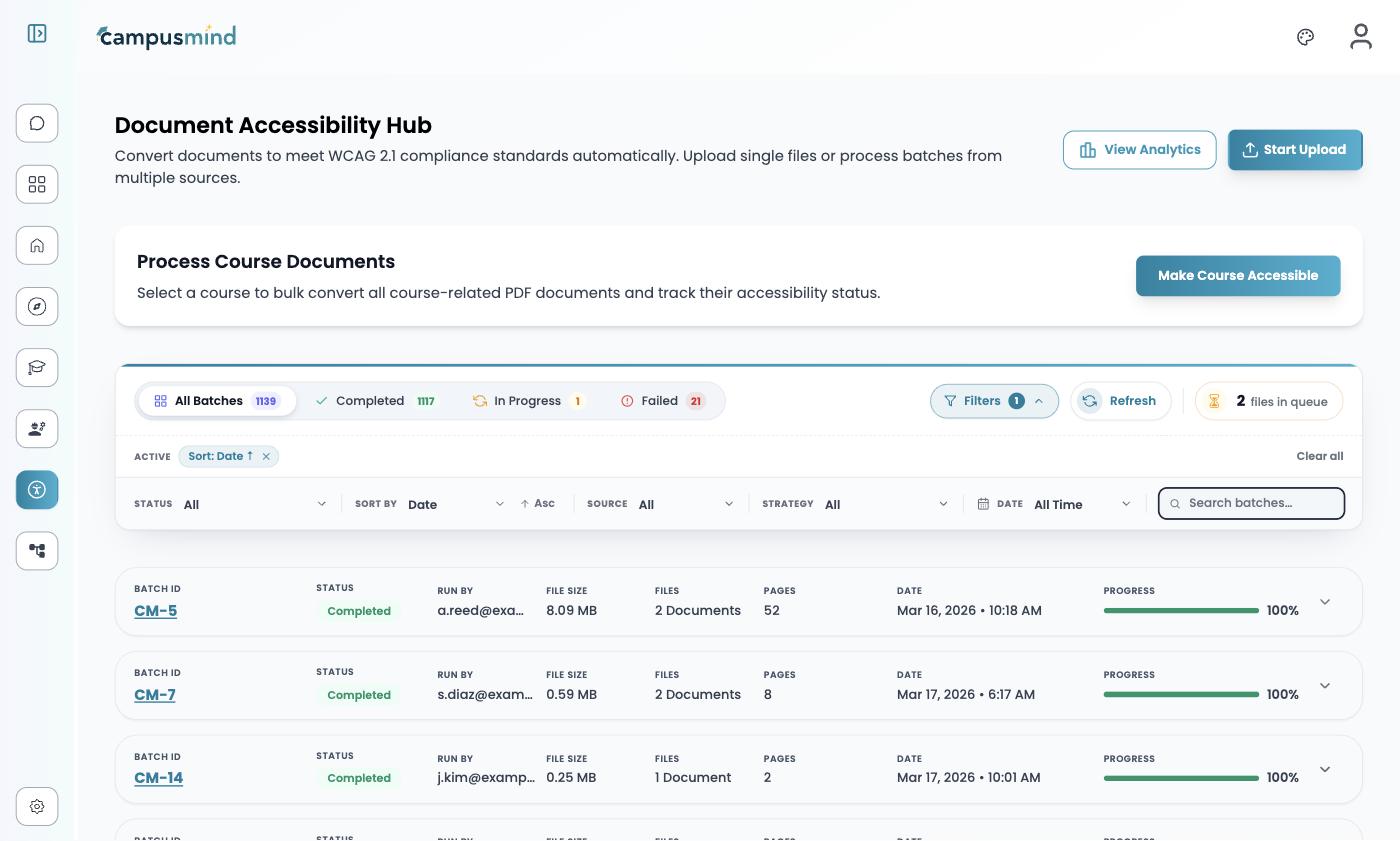
| Control | What it does |
|---|---|
| Status tabs | One-tap filtering: All Batches, Completed, In Progress, Failed, each with a count |
| Status filter | Every status, including Pending and Partially Completed, which the tabs don't show |
| Sort by | Order the list, for example by date ascending or descending |
| Source | Narrow to batches from a particular connected source |
| Strategy | Narrow to Preserve Layout or Full Accessibility Reconstruction runs |
| Date | Bound the list to a date range, or All Time |
| Search | Matches batch names — a good reason to name your batches |
Filters stick around
The hub keeps a filter applied until you clear it. If a batch you ran seems to be missing, choose Clear all next to the active filter chips, or set Status to All and Date to All Time. See Troubleshooting.
Read a batch
Expand a batch with the chevron on its row to see every file in it. Refresh updates statuses without reloading the page, and the toolbar counter shows how many files are queued across the whole tenant — useful for judging wait times when a run sits at Pending.
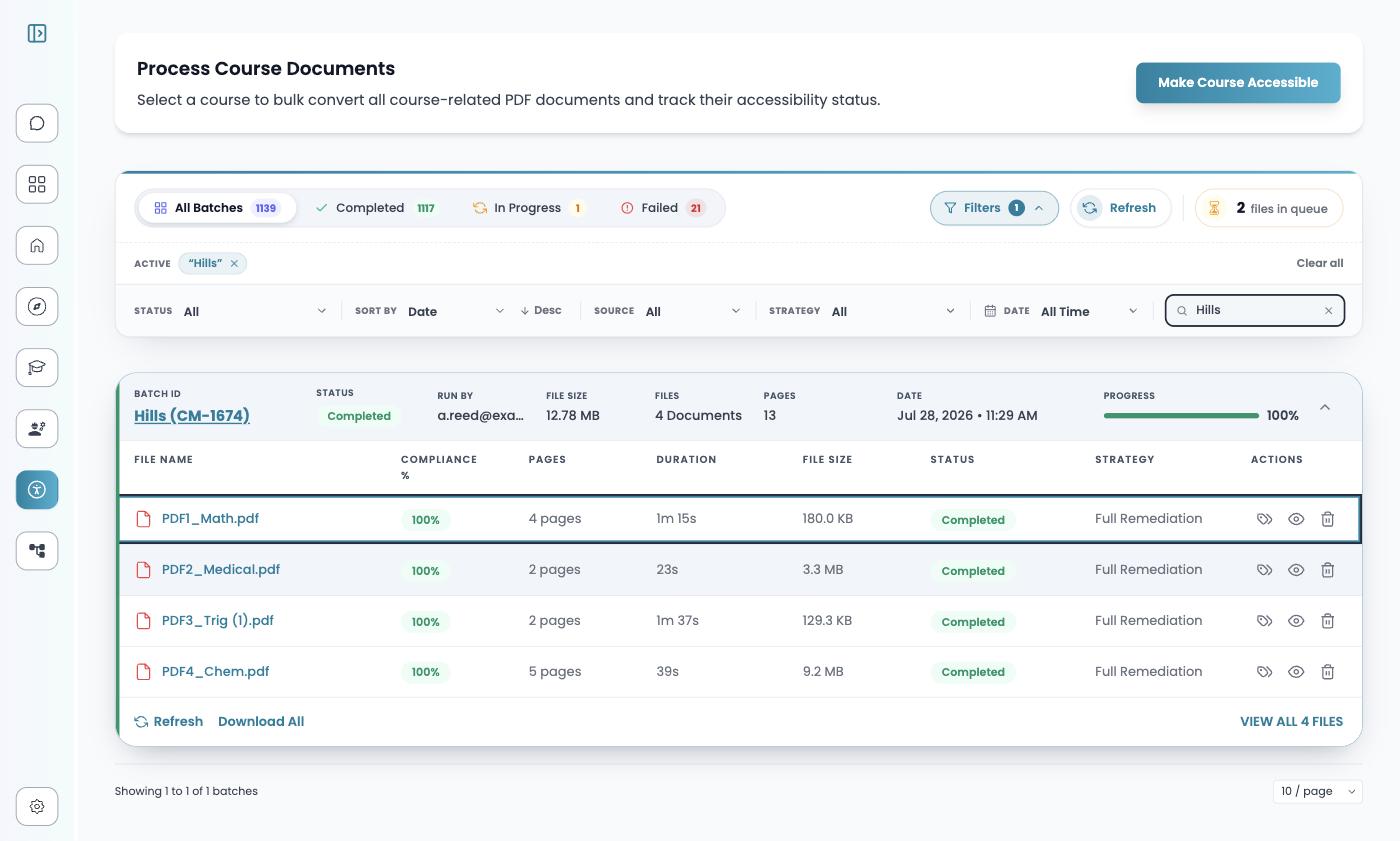
Each file row shows its compliance score, pages, duration, size, status, and the strategy that ran, with icons to edit tags and captions, view file details, or remove the file from the batch. Download All at the bottom of an expanded batch gets you every output at once.
Per-file labels, decoded
Files carry their own labels, which don't always match the batch-level status. A batch can read Failed or Partially Completed while individual files inside it finished fine.
| Label | Where it appears | What it means |
|---|---|---|
| Completed | File status | The file was remediated and has a score |
| failed | File process status | Processing didn't complete; the reason is shown inline on the row |
| autotag failed | Document badge | A stage didn't complete — but output may still exist, so open the document and compare both panes before rerunning |
| Review required | Remediation report | An item automation couldn't decide; it needs a person in the Tag & caption editor |
| unrun | Course file selection | The file hasn't been remediated yet; Select Unrun Files picks up exactly these |
For the batch-level statuses themselves — Pending, In Progress, Completed, Partially Completed, Failed — see Upload & remediate.
Review and rerun
Automation resolves most issues, and the remediation report flags the rest as Review required. Since v4.0.15 you can filter to just the flagged files instead of hunting through every batch.
Filter to the files flagged for manual review. The manual review filter behaves consistently across batch states, and filters inside a batch group its files.
Fix what you can. Open each file in the Tag & caption editor, correct tags and alt text, save, and revalidate.
Rerun what you can't. Create a new batch from the low-scoring or critical items with different remediation settings — a different strategy, content type, or thresholds. See Upload & remediate for what each setting changes.
Rerunning creates a new batch rather than overwriting the old one, so the original results stay in the hub for comparison.
Name your batches
At upload, you can give a batch a meaningful name instead of accepting the system-generated label. The hub shows the name beside the ID — Hills (CM-1674) rather than just CM-1674 — and names are consistent between the batch view and the remediation report.
Names are what the search box matches, so a name like the course code or the department pays off the first time you go looking for the batch months later.
Keyboard navigation
The accessibility module supports full keyboard navigation, introduced in v4.0.15:
- A
/command palette for jumping to actions. - Navigation hotkeys across the module.
Next steps
- Tag & caption editor — fix the files flagged for review.
- Troubleshooting — failed files, stuck queues, and lost batches.
- Version history — what happens to a document after you edit it.