In development. Screens can change between releases, and saved work may not carry over.
Tag & caption editor
Correct the tags and alt text CampusMind generated, then revalidate the document.
Remediation gets a document most of the way. This is where a person fixes what automation could not decide.
What alpha means here
- The interface will change. Screen names, buttons, and the steps below may not match a later release.
- Saved work may not carry over. Keep your own copy of anything you cannot redo.
- Not every institution has it yet. The editor is being enabled gradually.
- This page is still being written. Sections fill in as the editor settles.
Opening the editor
- On the Document Accessibility Hub, expand a batch and choose the Edit tags and captions icon on any file row.
- On a document's details page, choose Edit Tags. The remediation report marks anything needing attention as Review required — its Remaining Issues list is the to-do list that brings you here.
What you can change
| Change | Why you would |
|---|---|
| Tag type | The engine read a heading as body text, or a caption as a paragraph. Types are P, H1–H6, Figure, Formula, Table, List, LI, Span, Link, and Caption. |
| Alt text | Generated descriptions are literal by design. A chart described as "a line chart with a downward slope" needs a person to say what it means. |
Reading the tag panel
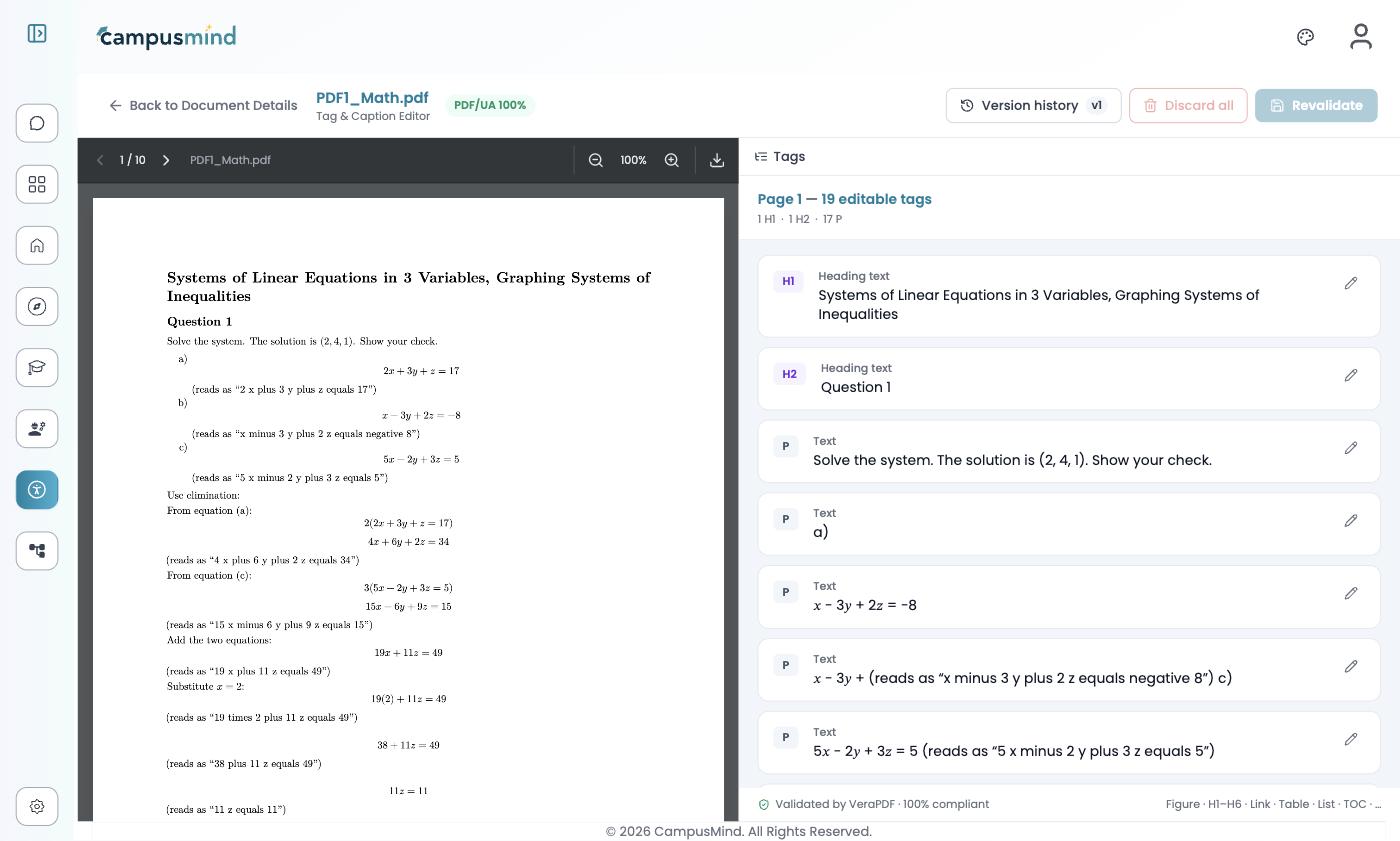
The right-hand panel works one page at a time, listing that page's tags in the order they
appear in the document. The header counts them — Page 1 — 19 editable tags, broken down
by type (1 H1 · 1 H2 · 17 P) — so a page with far more P tags than headings is easy to
spot before you open anything.
| On each row | What it shows |
|---|---|
| Type chip | The tag currently assigned — H1, H2, P, and so on |
| Label | What the tag represents, such as Heading text versus Text |
| Content preview | The element itself — for equations, the spoken form is included, such as reads as "x minus 3 y plus 2 z equals negative 8" |
| Pencil icon | Opens the tag for editing |
What to look at first
Three things are worth your attention on almost every document: alt text on anything that carries an argument, reading order on multi-column layouts, and contrast failures that live in the source design. What a person decides covers each in detail.
Saving and revalidating
Edits are held locally until you save, so you can work through several and commit them together. Saving creates a new version, and Revalidate re-runs the PDF/UA-1 check against your edited file.
- Revalidate sits in the toolbar at the top right. The strip at the bottom of the panel
shows the outcome —
Validated by VeraPDF · 100% compliantwhen the current version is clean. - Discard all, beside it, throws away the edits you are holding without saving them.
There is no approval step
Saving does not mark a document approved, and nothing gates delivery on review — CampusMind
has no sign-off action. Remediation's own output is version v1, attributed to System
(autotag), and your edits stack on top of it. If your institution needs a documented
approval process, that process lives with you. See Version
history.
Going back to an earlier version
Choose Version history in the toolbar. The badge beside it names the version you are
looking at — v1 for a document no one has edited yet.
- Remediation's output is stored as
v1, attributed to System (autotag). - Every save stacks a new version on top, so earlier states remain visible and can be recovered — saving never replaces them.
- Version history covers what each version records, and the limits of the record.
Getting the file back
Use the download icon in the top right of the document details page, or Download All on an expanded batch to get every file at once.