Troubleshooting
Fixes for the common issues that come up during remediation and review.
Each entry below is a symptom, its cause, and the fix. Almost everything that goes wrong on a course run is a connection problem rather than a document problem — usually a source that isn't connected for your account, or an authorization that has expired.
The course list is empty
Symptom — the course picker reads No courses available with No courses found beneath it, and the badge in the top right says Not connected.
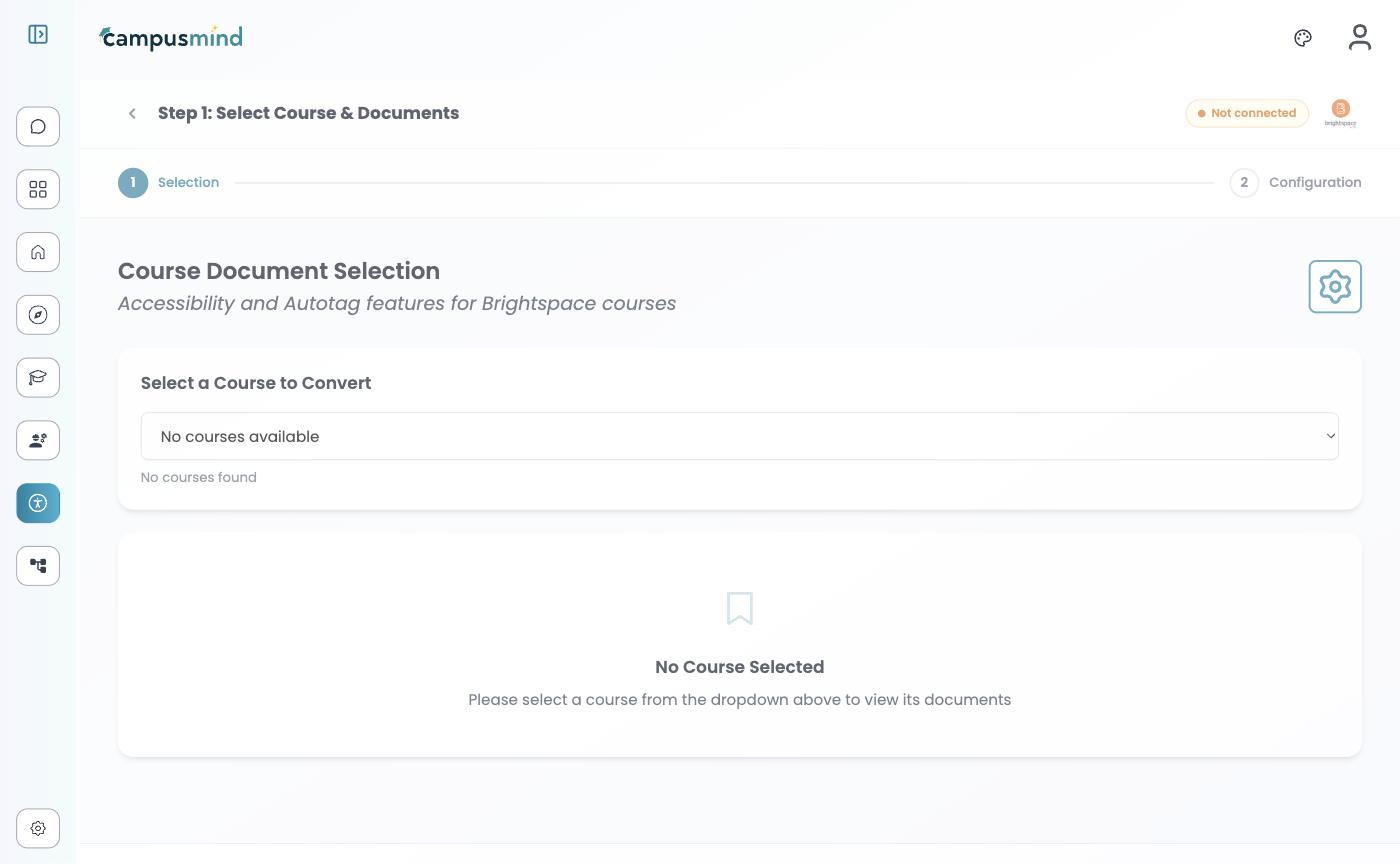
Cause — the source isn't connected for you. CampusMind doesn't block the screen; it loads it empty.
Fix — open the gear icon on the right of the page heading, enter your institution's URL for that system, and authorize CampusMind when the sign-in page appears. The authorization is tied to your own account, so a colleague being connected doesn't help you. See Connect a source.
A file failed with "Invalid access token"
Symptom — a file's process status is failed and the failure reason quotes a Canvas or
Blackboard error ending in something like {"message":"Invalid access token."}.
Cause — the access CampusMind was granted has expired or been revoked. It can still see the course listing but can no longer download the file.
Fix — reconnect through the gear icon on the course selection screen, then re-run the batch using Select Unrun Files. If it fails again straight after reconnecting, the institution-level access set up at onboarding needs attention — contact Support.
The batch says Failed but there's still a file
Symptom — the batch is marked Failed and the document badge reads autotag failed, yet opening the document shows a remediated PDF beside the original.
Cause — the two are reported at different levels. A run can produce output and still be recorded as failed if a stage didn't complete.
Fix — compare the two panes before you decide. If the output is usable, carry on with it in the Tag & caption editor; if not, re-run that file.
The batch says Partially Completed
Symptom — a batch finishes as Partially Completed rather than Completed or Failed.
Cause — some files finished and some failed. It's the normal outcome for a large course run where a handful of documents hit a problem.
Fix — expand the batch and read the per-file statuses; only the failed rows need attention. Re-running with Select Unrun Files picks those up.
Nothing happens when I add my file
Symptom — a document is rejected or ignored at the upload panel.
Cause — PDF is the only accepted format.
Fix — export from Word or PowerPoint to PDF first. Exporting usually carries some heading and list structure across, which gives remediation a better starting point than a flat scan.
I can't find a batch
Symptom — a batch you ran earlier isn't in the list.
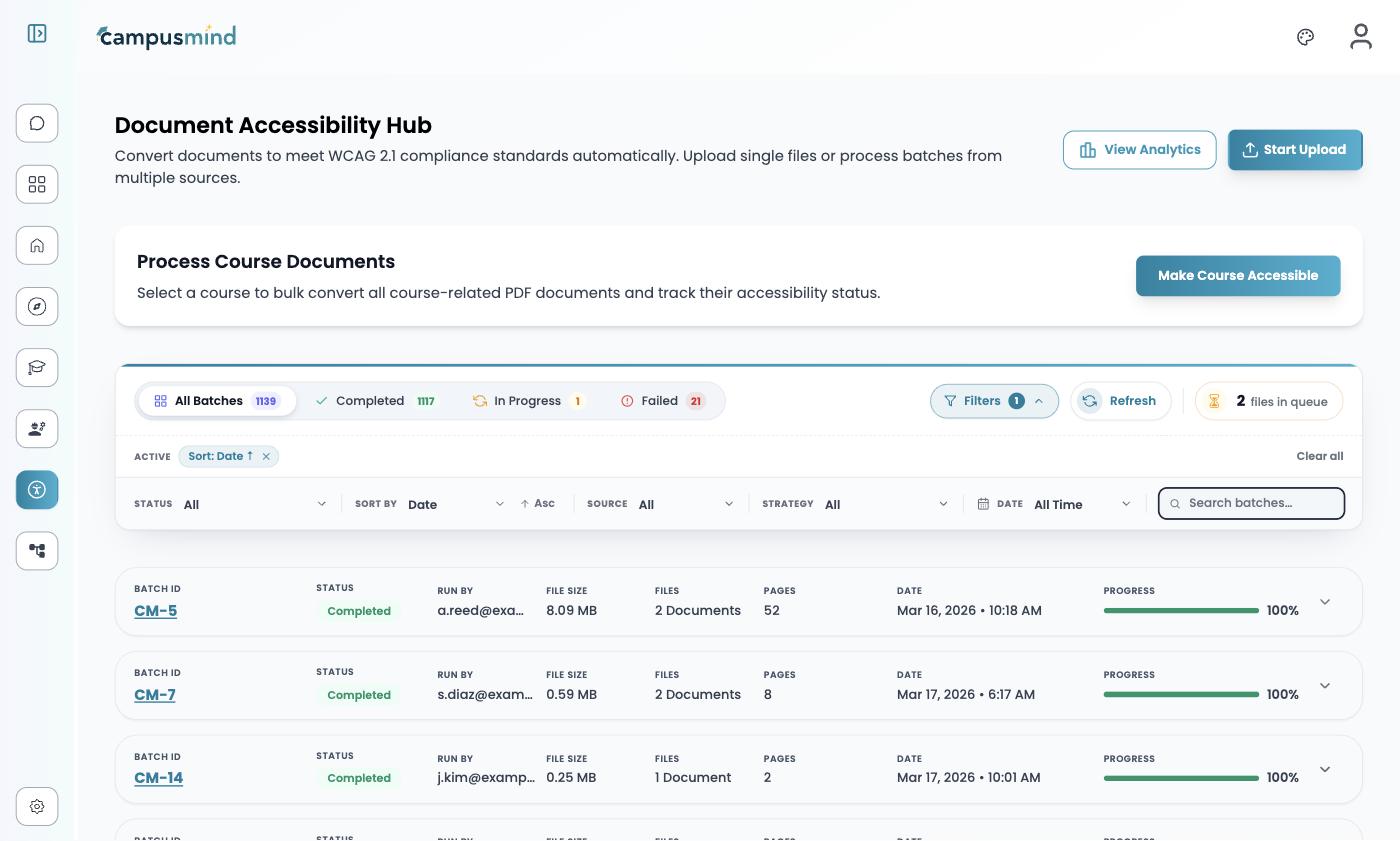
Cause — the hub keeps a filter applied until you clear it, and the status tabs across the top are themselves a filter.
Fix — choose Clear all next to the active filter chips, or open Filters and set Status to All and Date to All Time. The status filter carries two values the tabs don't show: Pending and Partially Completed.
My colleague can't see my batch
Symptom — someone in your institution opens the hub and your batch isn't there.
Cause — access is scoped by group, not by role. A batch is shared with groups at the moment it's created, using Add group on the upload screen.
Fix — share the batch with the right group when you create it. An existing batch can't be re-shared after the fact, so re-run it with the group set. See Set up your team.
A run seems stuck
Symptom — a batch sits at Pending or an unchanged percentage for a long time.
Cause — work is queued across the whole tenant, so a big course run ahead of yours delays everything behind it.
Fix — check the files in queue counter in the hub toolbar for the tenant-wide backlog, and use Refresh rather than reloading the page. For long batches, turn on Email notification in the configuration step instead of watching the screen.
The score is high and issues are still listed
Working as intended. The score is the share of 106 PDF/UA-1 rules that pass, so one unresolved rule on a long document barely moves the number — the list is the precise part.
Remaining issues names exactly what is left, which is what you take into the Tag & caption editor. Clear it, hit Revalidate, and the score follows. See FAQ and Accessibility standards.
Still stuck?
See FAQ for the questions that come up most, or Support to reach the CampusMind team.