

v4.4.0 — 1 September 2026
A new engine for complex tables and scanned PDFs, an audit-first batch mode, approve and reject in manual review, and structure editing with version history in the Tag & Caption Editor.
More documents now come out of remediation correctly tagged, and the rest are faster to fix by hand. A new engine reads complex tables and scanned pages, and the Tag & Caption Editor can now correct a document's structure as well as its alt text.
A new engine for complex documents
The layout analysis engine is a fourth option in the engine picker on Configure Remediation, alongside the formula and table engine, the text structure engine, and Hybrid. It reads the layout of each page first, then tags the file to match. It runs on Microsoft Azure inside your CampusMind deployment, like the rest of remediation.
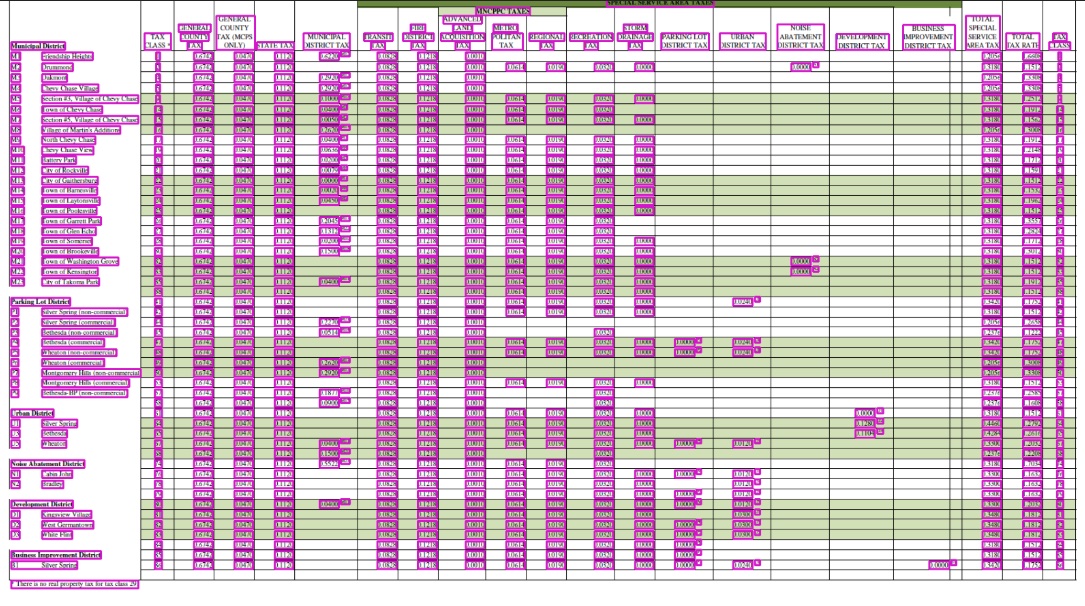
- Complex tables keep their structure. Large tables with many columns, and tables that sit inside an image, come back with real rows and columns. A screen reader reads their cells in the right order. (WCAG 1.3.1 Info and Relationships)
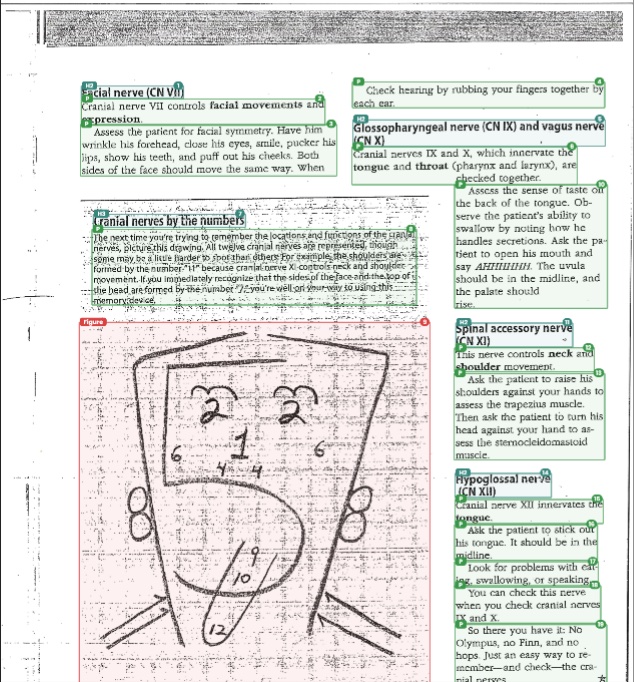
- Scanned and image-only PDFs come back readable. A page that is only a picture of text, such as a scan, is recognized and tagged so assistive technology can read it.
- Lists stay lists. Bulleted and numbered lists keep their list structure, and content follows the reading order of the page. (WCAG 1.3.2 Meaningful Sequence)
- Images get alt text. AI writes a plain-language description of each image and figure, so a screen reader user knows what it shows. (WCAG 1.1.1 Non-text Content)
- Headings, contents, and links are tagged. The engine detects headings, tables of contents, and links, and writes each into the file with its proper tag.
- Same validation as every engine. Output is tagged for PDF/UA-1 and scored by the same check the other three engines go through.
Tables
Scanned pages
Choosing the new engine
Nothing changes unless you select it. The default engine stays the same, and documents you have already run keep their current versions. The layout analysis engine does its best work on complex tables and scanned pages. Three kinds of content are worth a look in the editor after a run:
- Complex formulas. The engine tags these less consistently than the rest of the page. For material dense with equations, the formula and table engine is the better choice. See choosing an engine.
- Handwriting. A handwritten page has no text layer to read, so results depend on how legible the writing is.
- Images that contain text. The engine sometimes tags the words in the image as text, rather than describing the image as a figure.
Structure editing in the Tag & Caption Editor
The Tag & Caption Editor can now fix the structure that AI remediation produced, as well as its alt text. Each save creates a new version of the document, and Revalidate runs the PDF/UA-1 check again on your edits. Structure editing covers headings and paragraphs. Tables, lists, and form fields keep the tags that remediation gave them.
| Change | What it does |
|---|---|
| Edit alt text | Rewrite the description AI generated for an image when it needs more context or a correction. Your text carries into the next version. (WCAG 1.1.1) |
| Change a heading level | Move any heading between H1 and H6, so the outline matches how the document is organized. (WCAG 1.3.1) |
| Turn a heading into a paragraph | Change any heading to P. Use it for text that is large or bold but is not a heading. |
| Turn a paragraph into a heading | Change a P to any level from H1 to H6. Use it for a real section heading whose styling is subtle. |
| Delete a tag | Removes the tag only. The text or image it wrapped stays in the document. |
| Reorder tags | Changes the order a screen reader reads the content in, so it follows the sequence the author intended. (WCAG 1.3.2) |
Audit before you remediate
A new step, Choose how this batch runs, lets you see every file's score before you spend a remediation run on it.
- Audit scores every file, then pauses the batch. Open View pre-processing scan, pick the files that need work, and send only those for remediation.
- Audit + Remediate audits and remediates every file in one run.
- Every file is audited either way. Originals stay unchanged until they are remediated.
Approve or reject each document
Manual review now ends in a decision. Approve and Reject sit at the bottom of the Tag & Caption Editor.
- The batch view has a Manual review column, so you can see which files still need review, and which are approved or rejected.
- Approval is final. An approved document is locked against further edits.
- If you saved changes, run Revalidate before you decide. The score you approve always belongs to the version you approve.
Version history in the Tag & Caption Editor
- Remediation's output is
v1, the baseline, attributed to System (autotag). Each save adds a version with who saved it and when. - Only the latest version can be approved or rejected. To approve an earlier one, delete the versions after it from Version history.